Introducing the new Custodia


Custodia is still the same spend platform you already use: cards, budgets, spend permissions, receipts, and the people behind them. What is new is the workspace.
The new Custodia is easier to live in day to day. Your home page can be arranged around how you work. Budgets have a proper home instead of being tucked inside an admin grid. Spend review happens in one Expenses screen. Approvals live in one Approval Queue. And during the move, Classic Custodia stays available for the specialist jobs that have not moved yet.
Same company. Same data. Same permissions. A clearer place to do the work.
If a menu item is missing, ask your company admin before assuming it is gone — access is still based on your role and what your company has enabled.
What you will notice first
A home page you can shape. Dashboards are made of widgets. You can move them, resize them, add or remove them, save a layout, or go back to the default.
Dashboard puts the daily jobs together. Cards, spend permissions, receipts that still need attention, and your transactions sit on one screen instead of in fixed columns you cannot change.
The company dashboard is an overview, not a report dump. You get people and card counts, balance, spend by category for the last 90 days, monthly and daily spend, and a transaction list — in a layout finance can rearrange.
Budgets were rebuilt. Budgets is a real destination (tiles, list, or hierarchy). Budget Overview is new: one budget, in depth.
Expenses is the spend list. If you used to bounce between “my spend,” expenses, and transactions, start in Expenses.
Approvals have a home. Approval Queue is one tile inbox for spend requests, change requests, out-of-pocket claims, group pay, and payment approvals — starting with what is waiting for you.
Screen by screen
Use this as a “where did it go?” guide. When something still lives in Classic, that is expected for this wave — open Classic for that task, then come back.
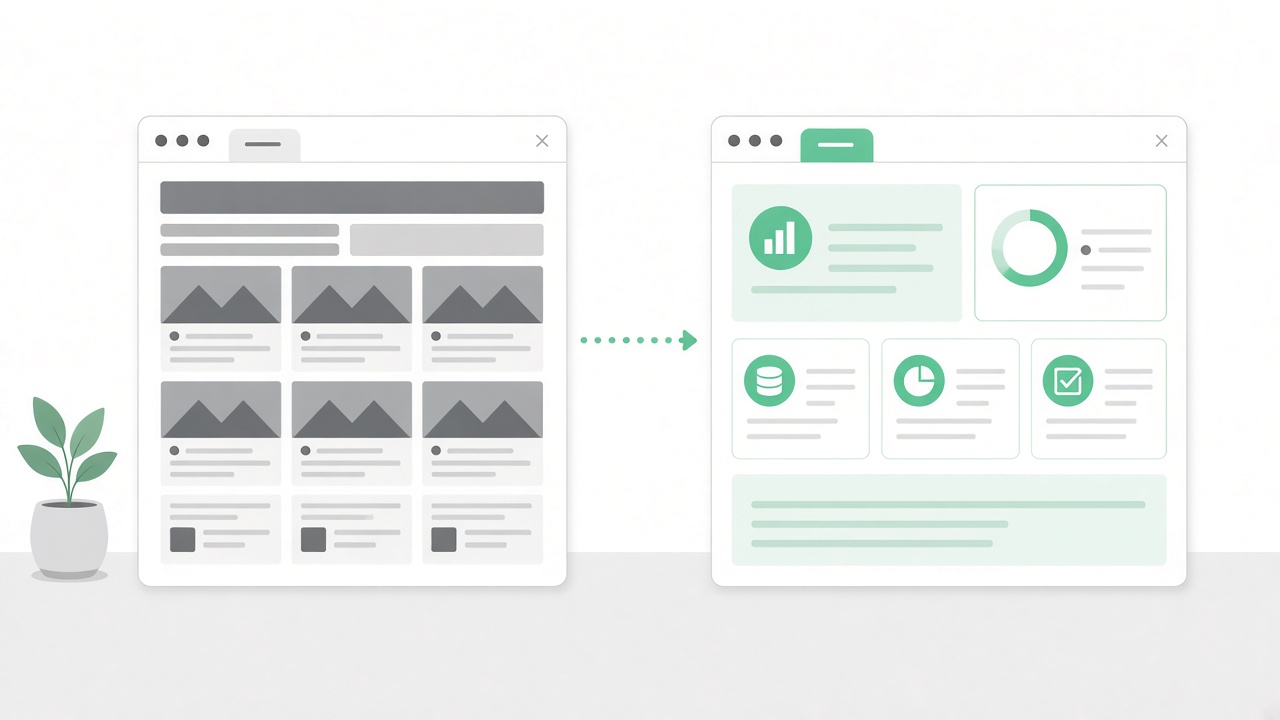
Dashboard
In Classic, the landing page was a fixed layout: My Dashboard for employees, My Team for managers, Overview for company admins.
In the new Custodia:
- Dashboard is your personal home: cards, spend permissions, receipts due, and transactions.
- Company Dashboard is the company overview: users, cards, balance, spend charts, and transactions.
- Employee Dashboard is the same idea for a specific person (profile plus their cards, permissions, receipts, and transactions). Company admins and similar roles can open it from the Employees screen.
If you relied on Classic My Team, that dashboard is not in the new platform yet. Keep using it in Classic.
Tip: Edit the layout once, put what you check every morning at the top, and save.
Spend
Classic had more than one door into the same spend: a full expenses view, a simpler list, and a separate transactions list.
In the new Custodia, that job is Expenses.
You can filter by status (all, pending review, reviewed, declined, issues), pick a period, search — including by expense ID — and open a row for classification, receipts, tags, and audit history. Export is here. You can also show, hide, and reorder columns; that layout is remembered in your browser.
If a card declined because the billing address or ZIP did not match (AVS), Decline Help can show a short in-app guide. It is meant for that kind of mismatch, and your company can turn it on.
Spend Permissions
Classic had a full company Activities screen (create, approve, filter, import/export) and a personal list on My Dashboard.
In the new Custodia, your spend permissions are a widget on Dashboard: pending, available, active, expired, archived, with search and utilization bars.
Approving those requests is no longer a Classic-only job. That inbox is Approval Queue. Creating and administering the program for the whole company still happens in Classic Activities (and, where your company has enabled it, the Spend Permissions screen).
Day to day: start on Dashboard. If you approve, live in Approval Queue.
Approval Queue
Classic scattered this work: approve activities in Activities, cash and out-of-pocket on their own screens, reimbursements on another.
In the new Custodia, that job is Approval Queue — one screen of tiles waiting for a decision.
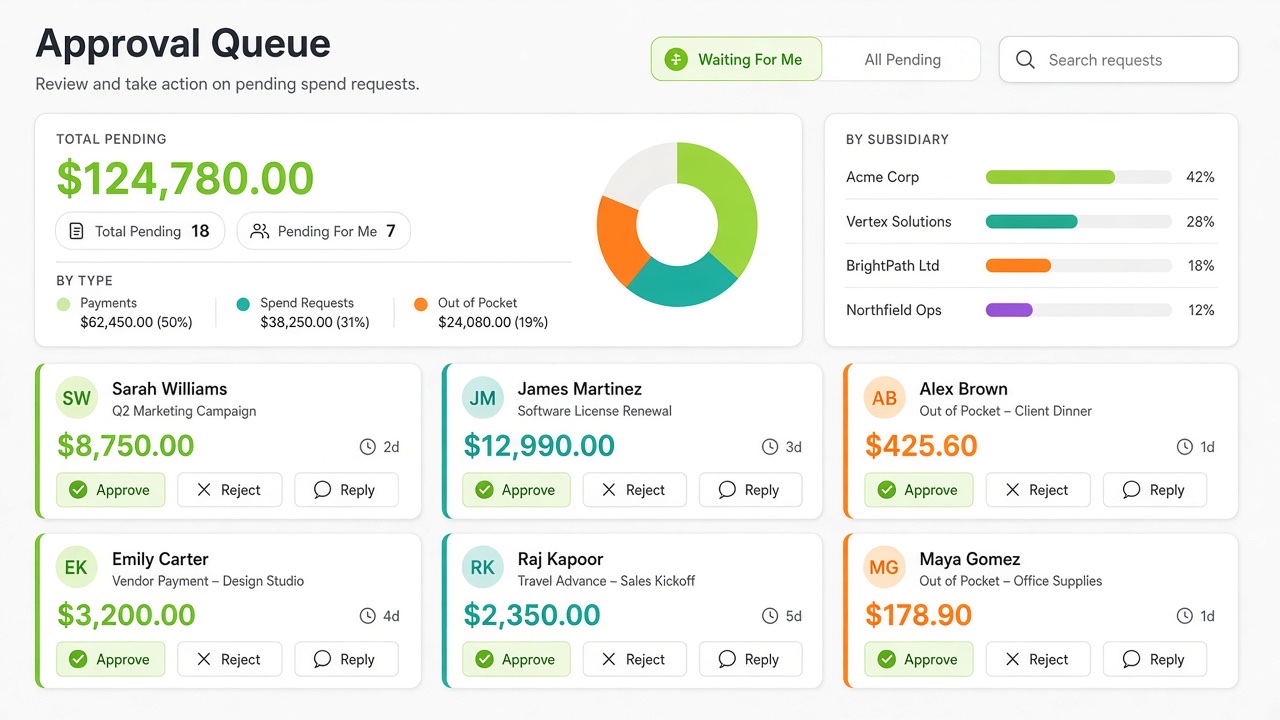
It opens on Waiting For Me. People with company-wide access can switch to All Pending. Support can use View As to look at another approver’s queue (read-only). Auditors can see the queue; they cannot decide.
The summary strip shows how much is pending, how many items, a breakdown by type, and where the requests come from (subsidiary or team). Type chips let you pin a kind to the top or hide it. Pending Clarification stays off until you include it — those requests are waiting on the requester, not on you.
Each tile is one decision: requester, amount, how long it has been waiting, and flags when something needs extra attention (over budget, blocked merchant, exceeds limit). Approve from the tile. Reject with a reason. Reply if you need a clarification. Open the tile for the full request, receipts, and thread.
You can select several tiles and bulk-approve one type at a time (spend requests together, payments together). Rejecting stays one-by-one — every rejection needs an explanation the requester can act on. Items waiting more than three days read as overdue. Sort by waiting time, amount, requester, or type. Search and filter by requester, budget, cost center, subsidiary, team, and who it is waiting for.
What you will see depends on your role. Payment approvals are for finance (and similar roles). Group Pay still with the recipient stays hidden until you ask for it.
If you approve spend, cash claims, or reimbursements, start here.
Budgets
Classic split this across a budgets grid and a utilization tile page. “My budgets” was mostly a filter, not a place with its own name.
Budgets is now a workspace. Switch between tiles, a list, and a hierarchy. Filter by fiscal year, search, and sort. Admins can view as the company or as an owner. You can create budgets and sub-budgets, duplicate, assign owners, and reclaim — when your company has those actions enabled.
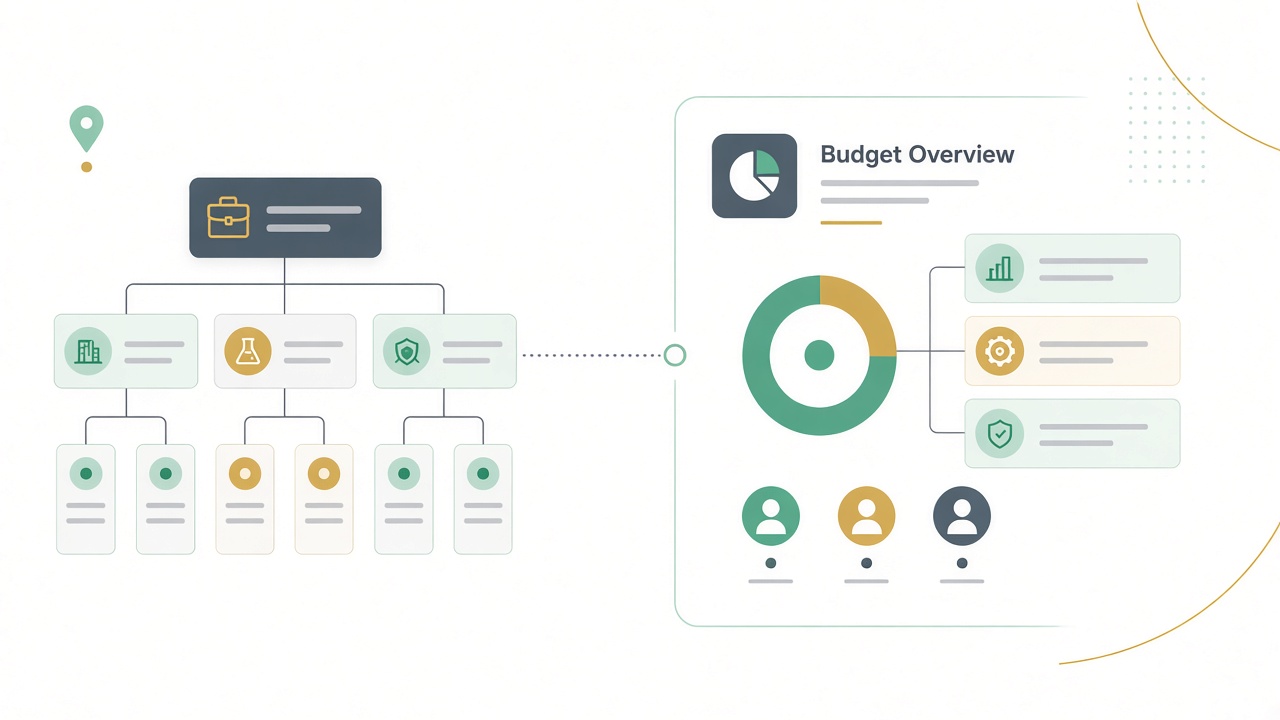
If you own budgets, start here.
Cards
Classic put a My Cards panel on the personal dashboard and a full company card list on a separate admin screen.
In the new Custodia, Cards is a dashboard widget: active or expired, one card in focus, previous/next if you have more than one, and lock / unlock / terminate when the card allows it.
There is no full company card inventory in the new platform yet. For that list, stay in Classic. Ordering and card actions for a person are also available from Employees.
Budget Overview
Classic did not have a screen with this name. The closest jobs were Budgets and Budget Utilization.
Budget Overview is new. Choose a budget and see utilization, mappings, sub-budgets, allocations, and spend by employee. From here you can adjust amounts, create sub-budgets, review allocations, and reclaim — again, when you are allowed to.
Budgets is the map. Budget Overview is the close-up.
Employees
Classic was a dense employee grid with status toggles and dialogs for edit, order card, and terminate.
That job is Employees in the new Custodia. You still filter by status (recent, active, admins, terminated, upcoming termination, archived), search, expand card rows, and run the same actions: edit, order a card, lock or unlock, terminate, shipping.
It is a clearer list. It does not remember a custom column layout the way Expenses does.
Teams
Classic used a flat org-teams grid, plus separate screens for hierarchy and who sits on which team.
In the new Custodia, Org Teams is still where you create and maintain teams (name, leader, parent, active, import/export).
Subsidiaries
Classic: legal entities — code, name, currency, office, import/export.
New Custodia: the same job, with search, filters, and edit drawers. If your company uses it, you can still create missing management teams.
This is housekeeping, just easier to maintain.
Projects
Classic: project master data — customer, cost center, owner, billable, import/export.
New Custodia: the same list, in business data. Use it when spend needs a project. It is not a project analytics dashboard (it was not one in Classic either).
Missing Receipts
Classic had a company compliance page: charts, a violators grid, reminder emails, and lock-card actions, looking back 90 days.
In the new Custodia, employees see Receipts Due on Dashboard: their expenses from the last 90 days that still need a receipt, and how overdue they are. Click a row to open it in Expenses and attach the receipt.
The widget does not email reminders or lock cards. Finance teams who need those company-wide actions should keep using Classic Missing Receipts.
Top 10 Spend
Classic Top Merchants showed the top merchants by spend for a period, with export and merchant detail.
The new platform does not have that report. Company dashboard charts show spend by category (last 90 days) and monthly/daily totals. Budget Overview shows top allocations on one budget. Neither is a merchant league-table.
For top merchants, stay in Classic.
AI Spend
There is no screen called AI Spend in Classic or in the new Custodia. If that is a nickname your team uses, tell us which Classic menu item you mean and we will point you to the right place.
A simple first week
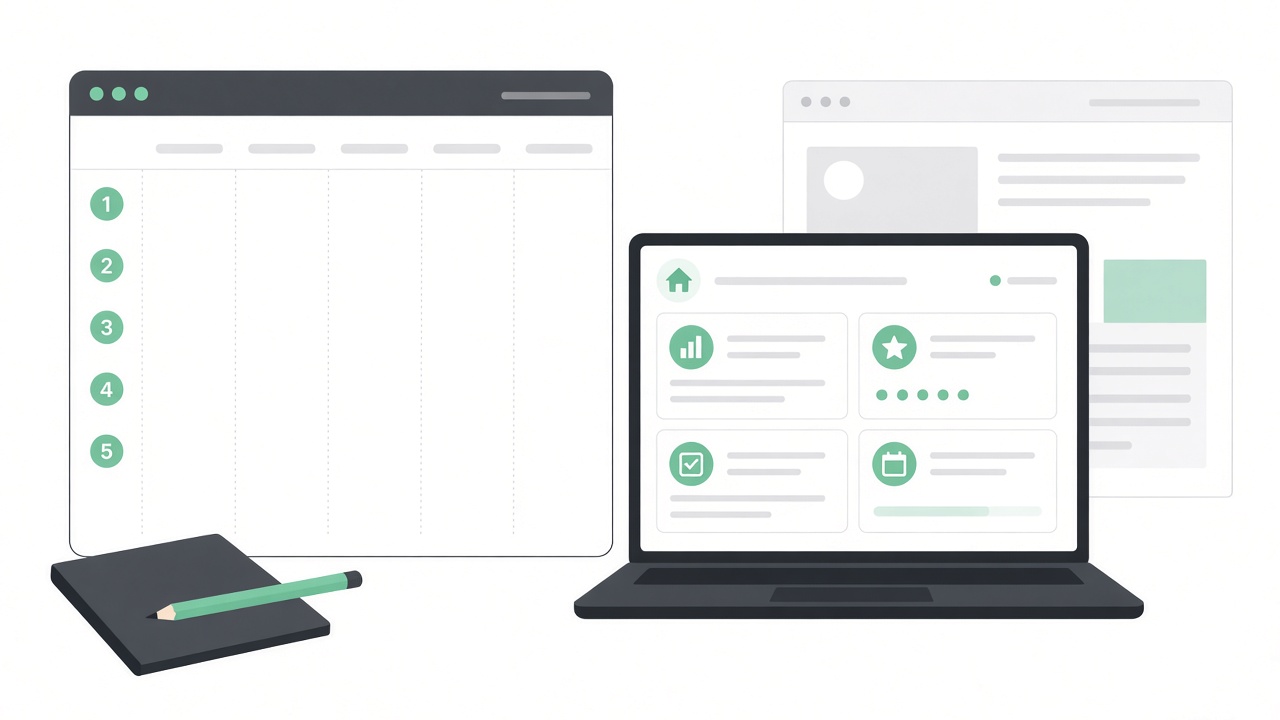
- Live on the new home page. Customize Dashboard. Check cards, permissions, receipts due, and transactions there first.
- Keep Classic in a second tab for creating company-wide activities, the full company card list, missing-receipt reminders, and top merchants.
- If you own budgets, spend time in Budgets and Budget Overview. This is new, not a reskin.
- If you review spend, make Expenses your default list. Attach receipts there. Use Decline Help when the decline is an address/ZIP mismatch.
- If you approve, make Approval Queue your default. Waiting For Me is the daily list; All Pending is the company view.
- If something is missing from the menu, ask your admin. It is usually access, not a missing feature.
You do not need to re-enter data. You are changing the door you walk through, not the house.
We would like to hear from you
If something is harder than Classic, or a screen you rely on is not in the map above, post here or contact support.
The new platform is rolling out in waves: the daily jobs first, the specialist back-office screens next.
Welcome in.
Please sign in to leave a comment.
Comments
0 comments